Webcam redirection makes the camera of the phone or computer in front of you a webcam of the computer you control. Of the common remote desktop tools, only RemotePC documents it for a remote Mac, and only between two Macs. As of 18 November 2026, TeamViewer, Parsec, Splashtop and ToDesk document it for a Windows remote computer only; Jump Desktop’s documentation says webcams cannot be redirected; and the documentation of AnyDesk, RustDesk and macOS Screen Sharing does not mention it. For meetings held in the browser on the remote Mac (Google Meet, Teams and Zoom on the web), Remote Visio does it from any laptop or phone: a browser extension on the Mac adds a webcam called Remote Visio Camera, fed by the camera of the device in front of you.
Webcam redirection, tool by tool
This is what each tool’s own documentation says about using your local webcam on the computer you control, when that computer is a Mac. The documentation was read on 18 November 2026. The date beside a source is the one its page shows.
| Tool | Your webcam on a remote Mac | What its documentation says |
|---|---|---|
| TeamViewer | No | Audio and video forwarding (27 July 2026) forwards your microphone and camera as a TeamViewer virtual microphone and a TeamViewer virtual camera, on Tensor and TeamViewer ONE licences. TeamViewer’s product update of July 2026 (28 July 2026) says they are forwarded “to a remote Windows device”, and no macOS release note up to 15.83 (27 October 2026) mentions the feature. |
| AnyDesk | Not documented | Its help center describes no webcam forwarding, for any system. Its audio settings (21 January 2026) describe audio transmission “from the remote device to the local device”. |
| Parsec | No | The Feature Matrix (26 November 2025) lists camera support for Windows hosts and not for macOS hosts. On the client, it needs a Warp or Teams subscription. |
| RustDesk | Not documented | View camera (version 1.3.9, March 2025) works in the other direction: it shows you the camera of the computer you control, when that computer runs Windows or Linux (pull request 11040). No release note up to 1.5.3 (9 November 2026) describes sending your webcam to that computer. |
| Jump Desktop | No | Redirect USB devices: “Keyboards, mice, webcams, printers, and storage drives cannot be redirected.” No change log entry up to version 10.17.8 (17 November 2026) mentions a webcam. Its microphone forwarding does reach a Mac host, from a Mac over its Fluid protocol (Remote audio; change log, 21 December 2021). |
| Splashtop | No | Redirect Camera Input (7 October 2026) needs Windows 10 or later on the local side and on the remote side. Its Microphone Passthrough (19 October 2026) does reach a Mac, from a Windows PC. |
| RemotePC | Yes, between two Macs | Redirect Camera Input (the page shows no date): “This feature is currently supported for Mac-to-Mac remote sessions.” It needs macOS 12.3 or later on the remote Mac and macOS 10.14 or later on yours, and its camera, RemotePCCam, has to be allowed in System Settings. RemotePC’s Mac release notes list the feature in version 7.7.32 (15 July 2024). |
| ToDesk | No | The release notes of version 5.4.0 of its iPhone and iPad app (15 November 2026) add microphone and camera mapping for Windows controlled computers only. Its help article on microphone mapping (11 November 2026) says the same for the microphone. |
| macOS Screen Sharing | Not documented | Apple’s guide, Share the screen of another Mac, covers starting a session, display and quality settings, view and control modes, the shared clipboard and sending files, and mentions no camera. |
| Microsoft RDP (far end is Windows) | Not to a Mac: built in, and it stops at Windows | Camera redirection (12 November 2026) is built into Windows App on Windows, macOS, iOS, iPadOS, Android and ChromeOS, and Windows App connects to Windows computers, not to a Mac. |
| Remote Visio | Yes, in web meetings | Remote Visio Camera, in web pages of a Chromium browser (119 or later) or Firefox (128 or later) on the Mac, from any device with a current browser. |
“Not documented” means the tool’s documentation does not say. Tools change: if one has added webcam redirection to a Mac, write to contact@remotevisio.com.
Why a remote Mac is the hard case
When the remote computer runs Windows, several of these tools add a virtual camera to it. Splashtop writes that your local camera “will appear as a virtual camera on the remote computer”, TeamViewer calls its own the TeamViewer virtual camera, and Microsoft builds camera redirection into Remote Desktop. Their documentation offers that for a Windows remote computer, not for a Mac.
RemotePC is the one tool here whose documentation covers a camera on a remote Mac. Between two Macs, its Redirect Camera Input adds a camera called RemotePCCam on the remote Mac (macOS 12.3 or later), which you allow in System Settings. Its documentation names no phone and no Windows PC as the sending side.
Remote Visio takes another road. Its browser extension adds a camera to the list of devices that web pages see, inside the browser on the Mac. Nothing is installed in macOS: no driver, no approval in System Settings, no administrator. The picture comes from any device with a current browser, a phone included, and your remote desktop tool does not change. The trade-off is that only web pages see the camera. How it works, and what a company-managed Mac allows, is in A virtual camera for Google Meet on a Mac, no admin rights.


Set it up
Keep your remote desktop tool for the screen, keyboard and mouse. Remote Visio runs beside it.
- Add the extension on the Mac. Through your remote desktop, open the extension’s Chrome Web Store page in Chrome, Edge, Brave or Arc on the Mac and click Add to Chrome (Get in Edge), or its addons.mozilla.org page in Firefox and click Add to Firefox, then pin it so its button stays in the toolbar. The browser’s prompt says the extension can read and change all your data on all websites (Firefox: access your data for all websites): that is what lets it add its devices to any meeting page, with nothing to turn on site by site, and its script reads nothing on the pages. Nothing is installed outside the browser, and no administrator is needed.
- Pair the device in front of you. Click the extension’s button, then Pair a device: it shows a QR code and a link, good for 10 minutes. Scan the code with your phone, or open the link in any browser on any other device (paste it in your laptop’s browser, or send it to yourself in a message or an email). The sender page at
relay.remotevisio.comasks you to confirm and shows a 6-digit number: type it into the approval window that opened on the Mac. That pairs the device, with nothing else to click; the page then names the Mac it is paired with. - Press Start and pick the devices. Press Start on your device and allow its microphone, and the camera if you want to send video. On the Mac, open the meeting site (reload its tab if it was open before you added the extension: the extension’s button offers Reload). Then, in the meeting’s settings, choose Remote Visio Microphone, Remote Visio Speaker and Remote Visio Camera.
- Turn off audio in your remote desktop tool. Remote Visio now carries the meeting’s sound back to you. If the remote tool still forwards sound, you hear the meeting twice.
Until video arrives, the camera shows a dark card titled “Remote Visio Camera” whose second line says what it is waiting for.
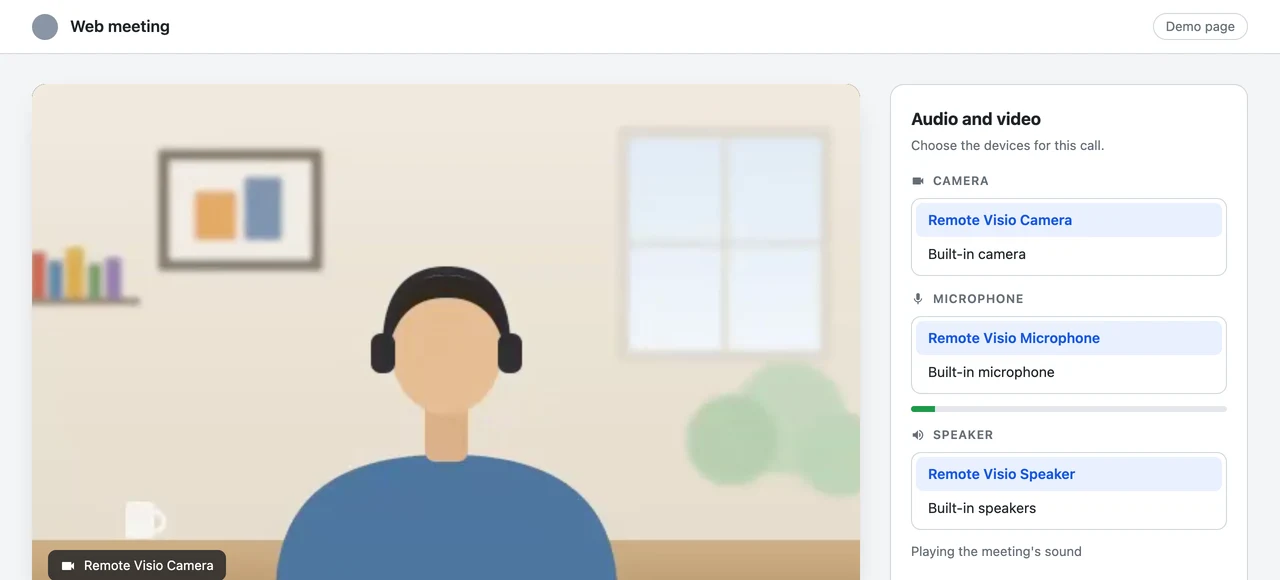
In Google Meet, Teams and Zoom on the web
- Google Meet runs in the browser: Settings → Video, choose Remote Visio Camera.
- Microsoft Teams: choose Continue on this browser when the link offers the app, then Settings → Devices, camera.
- Zoom: choose Join from your browser, then use the arrow next to Start Video.
The Zoom and Teams apps do not see Remote Visio Camera, so the meeting has to run in the browser: Join Zoom and Teams from the browser on a remote Mac has each step. A site that remembered the Mac’s own camera by name keeps using it until you choose Remote Visio Camera in its settings.
Limits to know first
- Web meetings only. Remote Visio Camera exists in web pages of a Chromium browser (Chrome, Edge, Brave, Arc, Vivaldi, Opera and others built on Chromium 119 or later) or Firefox (128 or later) on the Mac. The Zoom, Teams and FaceTime apps and Safari do not see it.
- A direct path is needed. Remote Visio’s relay only sets the connection up; the video goes between your two devices directly. Two devices that cannot reach each other at all, as behind some corporate firewalls, do not connect yet: there is no TURN relay.
- Built and tested on macOS. The extension also runs in a Chromium browser or Firefox on Windows, Linux and ChromeOS, where it is untested.
- The picture follows the network. The meeting gets the frames at the size your device sends, which WebRTC adapts to the connection.
If the remote computer runs Windows
You may not need Remote Visio. According to their documentation, Microsoft’s Remote Desktop redirects your webcam and your microphone to a Windows computer, Splashtop’s Redirect Camera Input works between two computers on Windows 10 or later, Parsec lists camera support for Windows hosts, from a Windows or macOS client with a Warp or Teams subscription, ToDesk maps the camera to a Windows controlled computer, and TeamViewer’s audio and video forwarding, on Tensor and TeamViewer ONE licences, forwards your camera to a remote Windows device.
Your microphone and the meeting’s sound
The same connection carries your microphone to the Mac and the meeting’s sound back to you. Which tools forward a microphone to a Mac is in Use your microphone over remote desktop on a Mac. To send the picture from a phone, see Use your phone as the microphone and webcam of a remote Mac.
Ready to try it? Add the extension on the Mac, then open relay.remotevisio.com on your device.