Remote Visio brings the camera of the device in front of you (a phone, a laptop) to a Mac you control remotely, as a webcam called Remote Visio Camera: a webcam for remote desktop, which your remote desktop tool cannot pass through to a Mac by itself. It comes from a browser extension, so it needs no administrator, no driver and no approval in System Settings. That makes it work on many company-managed Macs where installing a classic virtual camera is blocked.
How the camera works
The Remote Visio Camera extension (its Chrome Web Store name, from when it carried only the camera) adds three devices to the lists that web pages see: Remote Visio Camera, Remote Visio Microphone and Remote Visio Speaker. Your sending device’s camera reaches the extension over an encrypted WebRTC connection, as H.264. The extension decodes it once and hands the picture to each meeting page that picked Remote Visio Camera, over a connection that stays inside the Mac, and the page treats it like any webcam.
Nothing on that last leg leaves the Mac, and a site gets the camera only after you allow it, once per site.
Set it up
- Add the extension on the Mac. Through your remote desktop, open the extension’s Chrome Web Store page in Chrome, Edge, Brave or Arc on the Mac and click Add to Chrome (Get in Edge), then pin it so its button stays in the toolbar. Nothing is installed outside the browser, and no administrator is needed.
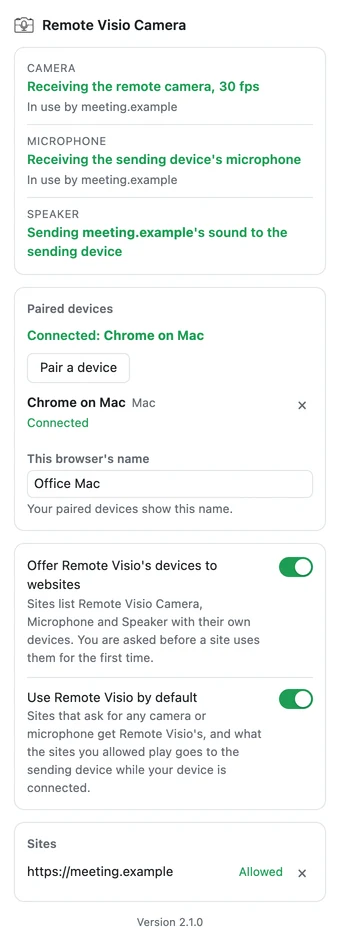
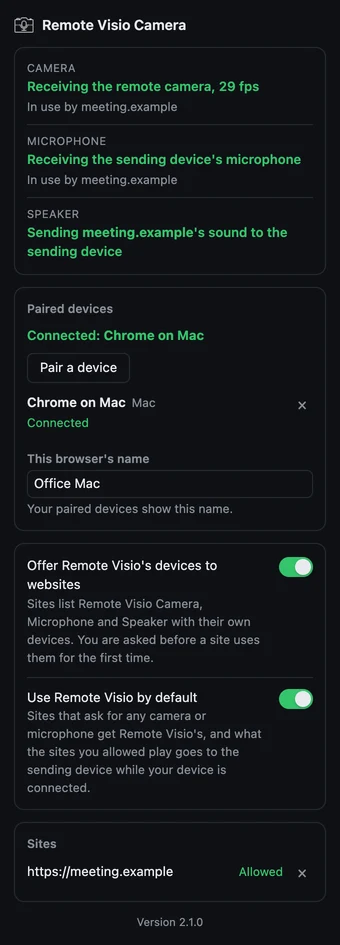
- Pair the device in front of you. Click the extension’s button, then Pair a device: it shows a QR code and a link, good for 10 minutes. Scan the code with your phone, or open the link on your laptop. The sender page at
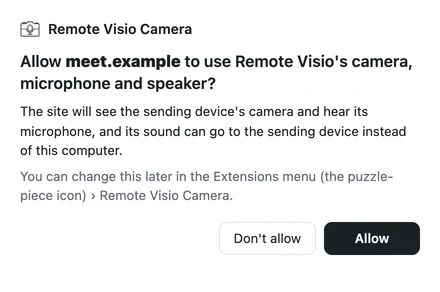
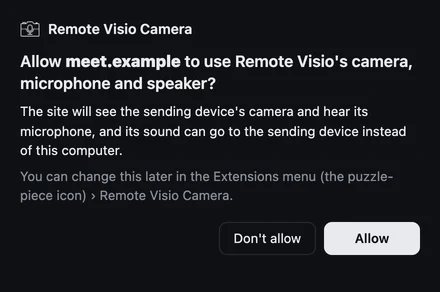
remotevisio.com/sendasks you to confirm and shows a 6-digit number: type it into the approval window that opened on the Mac and click Allow. The page then names the Mac and offers Send to this computer. - Press Start and pick the devices. Press Start on your device and allow its microphone, and the camera if you want to send video. In the meeting’s settings on the Mac, choose Remote Visio Microphone, Remote Visio Speaker and Remote Visio Camera, then click Allow when the extension asks whether the site may use them. It asks once per site.
- Turn off audio in your remote desktop tool. Remote Visio now carries the meeting’s sound back to you. If the remote tool still forwards sound, you hear the meeting twice.
Until video arrives, the camera shows a dark card titled “Remote Visio Camera” whose second line says what it is waiting for, for example the sending device.
In Google Meet, Teams and Zoom
- Google Meet: Settings → Video, choose Remote Visio Camera.
- Teams on the web: Settings → Devices, camera.
- Zoom on the web: the arrow next to Start Video.
One question from the extension covers the camera, the microphone and the speaker for that site.
On a company-managed Mac
Organizations often manage Macs with a device management (MDM) policy that only allows the system extensions and drivers they list. The browser extension’s camera needs none of those, so it works without asking anyone, with two exceptions:
- A managed browser that forbids extensions. If the organization also manages the browser and allows only listed extensions, ask IT to allow this one by its ID,
bhijcffjnmjijifjiaeibbogmbohdmon(the extension page links its store page), or use another Chromium browser you are allowed to install. - A browser policy that forbids direct WebRTC connections (
WebRtcIPHandling). The devices are connected to the page over the Mac’s own addresses; a policy that blocks that blocks them too, and only the administrator can change it.
Things that look wrong but are fine
- A dark card instead of video. The camera is waiting: on the sending device, the camera’s round button must be on (not red), and its status says why nothing is sent.
- The picture is smaller than the meeting’s own camera would be. The page gets the frames at the size your device sends, which WebRTC adapts to the network. It picks up again when the network does.
Requirements and limits
- The sending browser must be able to send H.264. If the camera’s status says this browser cannot send H.264, use another browser on that device, such as Chrome.
- The camera works in Chromium browsers (version 116 or later), not in Safari or Firefox, on macOS, Windows, Linux or ChromeOS.
- The extension works in the browser profile it was added to. Private windows get it only once you turn on Allow in Incognito in the extension’s details.
- Native apps (the Zoom, Teams and FaceTime apps, OBS) do not see Remote Visio Camera, nor the microphone: join from the browser.
- Decoding the video for each meeting page costs the Mac some CPU, about a tenth of a core per page on an Apple Silicon Mac.
More about the extension, including each permission it asks for, on the extension page.