Guides: meetings on a remote Mac
Step-by-step answers for using your microphone, camera and speaker on a Mac you reach through Parsec, AnyDesk, TeamViewer, Screen Sharing or another remote desktop tool. Each guide says what works, and what does not.
- 01 · 5 min read
Use your microphone over remote desktop on a Mac
Remote desktop tools send a Mac's screen, not your voice. How to use your microphone, camera and speaker in web meetings on a Mac you control remotely.
Read the guide - 02 · 4 min read
Parsec with a Mac host: getting your microphone into meetings
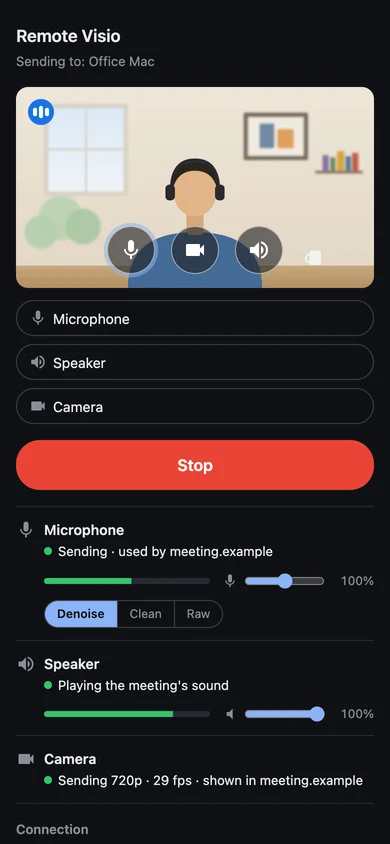
Parsec shows you a Mac host's screen but does not send your microphone to it. How to talk in web meetings on the Mac by running Remote Visio beside Parsec.
Read the guide - 03 · 4 min read
AnyDesk, TeamViewer and Screen Sharing: talk in a meeting on the remote Mac
AnyDesk, TeamViewer and macOS Screen Sharing do not send your microphone to a Mac. One fix works with all of them, and other remote tools: Remote Visio.
Read the guide - 04 · 4 min read
Use your phone as the microphone and webcam of a remote Mac
Use an iPhone or Android phone as the microphone, webcam and speaker of a Mac you control remotely, in web meetings, with nothing to install on the phone.
Read the guide - 05 · 3 min read
Join Zoom and Teams from the browser on a remote Mac
Remote Visio's microphone and speaker work in web meetings. How to join Zoom and Microsoft Teams from the browser on a remote Mac, and pick the right devices.
Read the guide - 06 · 3 min read
Fix echo and double audio in meetings over remote desktop
Hearing the meeting twice, your own voice or an echo in meetings on a remote Mac? The causes, and the fix for each one, with Remote Visio.
Read the guide - 07 · 4 min read
A virtual camera for Google Meet on a Mac, no admin rights
A virtual camera for Google Meet, Teams and Zoom on the web, fed by your phone or laptop: a browser extension, no administrator, no System Settings approval.
Read the guide
Free · open source · no account
Talk in your next meeting on the remote computer.
Add the extension to the browser on the remote computer, pair the device in front of you once, and press Start.