Remote Visio’s microphone, speaker and camera exist inside web pages of a Chromium browser on the Mac, so the meeting has to run in that browser, not in the Zoom or Teams app. Both services let you join from the browser: Zoom with Join from your browser, Teams with Continue on this browser. Google Meet runs in the browser anyway. Then pick Remote Visio’s devices in the meeting’s settings.
Why the apps cannot see Remote Visio’s microphone
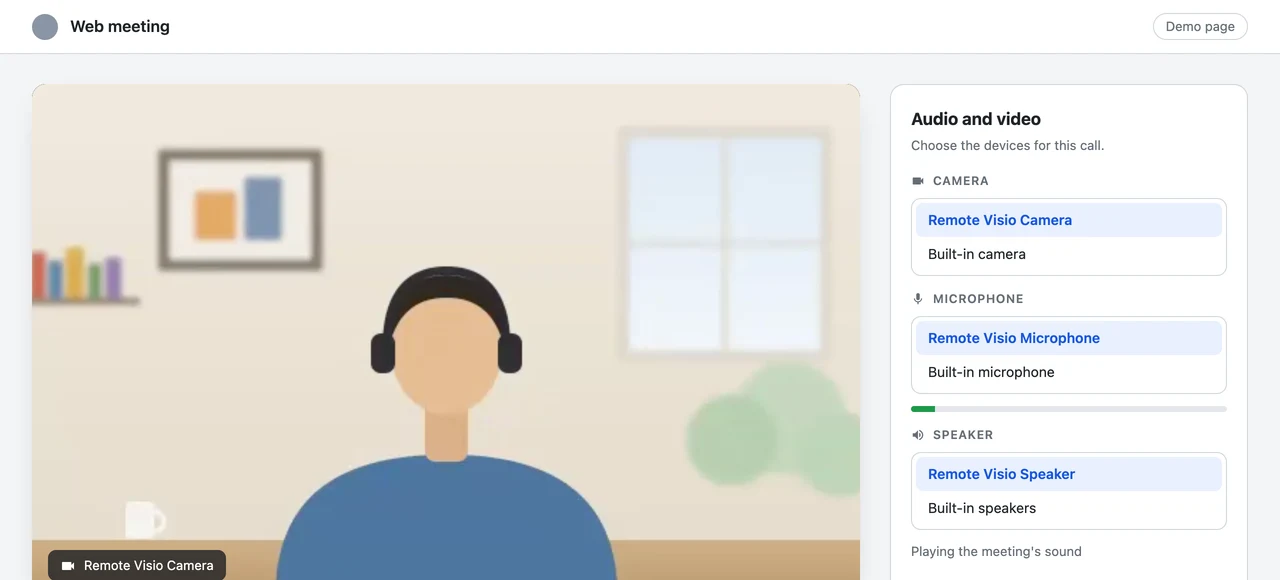
Remote Visio does not install an audio driver on the Mac. Its browser extension adds Remote Visio Microphone, Remote Visio Speaker and Remote Visio Camera to the list of devices a web page sees. That keeps installation simple (no administrator, nothing outside the browser) and leaves the Mac’s own sound alone. The trade-off: native apps never see those devices. That includes the Zoom, Teams and FaceTime apps, macOS dictation, and Safari and Firefox, which cannot load the extension.
Before you start
- The Mac’s browser is open with the Remote Visio extension in it: Chrome, Edge, Brave, Arc, Vivaldi or Opera.
- Your device is paired with the Mac, and the sender page is open and started on it (see Use your microphone on a remote Mac).
- Meeting pages that were open before you installed the extension have been reloaded.


Zoom: join from your browser
- Open the meeting link in the Chromium browser on the Mac.
- When the page offers to open the Zoom app, cancel, and choose Join from your browser. (If the link opens the app straight away, copy the link into the browser instead.)
- In the meeting, use the small arrows next to Mute and Start Video: choose Remote Visio Microphone and Remote Visio Speaker under the microphone’s arrow, and Remote Visio Camera under the video’s.
- When the extension asks whether the site may use Remote Visio’s devices, click Allow.
Microsoft Teams: continue on this browser
- Open the meeting link in the Chromium browser on the Mac.
- On the page that offers the Teams app, choose Continue on this browser.
- Before joining, or during the meeting in Settings → Devices, set the microphone to Remote Visio Microphone, the speaker to Remote Visio Speaker and the camera to Remote Visio Camera.
- Allow the site when the extension asks.
Google Meet
Meet runs in the browser. In the meeting, open Settings: Audio holds the microphone and speakers, Video the camera. Choose the three Remote Visio devices and allow the site once.
Other web meetings
Any web page that lets you choose a microphone, speaker or camera lists Remote Visio’s devices: Jitsi and Whereby, for example. The extension asks once per site, the one in the address bar, with one question for the three devices, and remembers the answer.
Let Remote Visio be the default
The extension’s button has a switch called Use Remote Visio by default, on unless you turn it off. With it on:
- a site that asks for any microphone or camera, without naming one, gets Remote Visio’s (after the same one-time question);
- on a site you allowed, what the page plays on the default output goes to Remote Visio Speaker, but only while your sending device listens; otherwise it plays on the Mac as usual.
A site that remembered one of the Mac’s own devices by name (say, “MacBook Pro Microphone”) keeps getting that one: pick Remote Visio’s once in its settings.
Checking that it works
- On your sending device, the microphone’s status says Sending · used by 1 page on the remote computer and the speaker’s says Playing the meeting’s sound.
- On the Mac, the extension’s button shows each device with the site using it, and your device as connected.
- The meeting’s own microphone meter moves when you talk.
If the meeting hears nothing, check in this order: the sender page is started and its microphone button is not red; the meeting uses Remote Visio Microphone; the site is not listed as Blocked in the extension’s button (remove it, and it asks again); the page was reloaded after the extension was installed.
Turn off the remote desktop tool’s sound
Remote Visio sends the meeting’s sound to your device. If your remote tool also forwards the Mac’s sound, you hear everything twice. Turn sound off in the remote tool. More in Fix echo and double audio.
Add the extension on the Mac to get started.