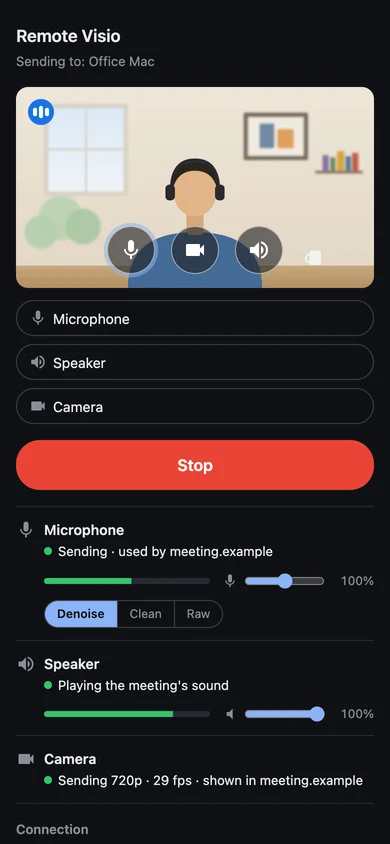
The Remote Visio browser extension
It gives web meetings on the computer you remote into three more devices: Remote Visio Microphone, Remote Visio Speaker and Remote Visio Camera, fed by the device in front of you, paired once.
Listed in the Chrome Web Store as "Remote Visio Camera": the name dates from when it carried only the camera. It is the whole product on that computer: nothing is installed outside the browser.
Where it works
Chromium browsers
Chrome, Edge, Brave, Arc, Vivaldi, Opera and other Chromium browsers, version 116 or later, on macOS, Windows, Linux or ChromeOS. Not Safari or Firefox. Built and tested on macOS.
Web pages
Google Meet, Teams and Zoom on the web, and any page that lets you choose a device. Native apps (Zoom, Teams, FaceTime) do not see it.
One browser profile
It works in the profile you add it to, and so do its pairings. Private windows get it only when you turn on Allow in Incognito in its details.
Install it
- On the remote computer, through your remote desktop, open the extension's Chrome Web Store page in a Chromium browser.
- Click Add to Chrome. In Edge, click Get (Edge may first ask to allow extensions from other stores).
- Pin it: the Extensions button (the puzzle piece), then the pin next to Remote Visio Camera.
- Pair the device in front of you (below), then press Start on it.
- Reload meeting pages that were already open, then pick Remote Visio's devices in the meeting's settings.
Without the store: the extension is also the chromium/ folder of the
source code. On the browser's extensions page, turn on Developer mode and
choose Load unpacked. An unpacked extension is switched off again whenever Developer mode is turned off, and keeps its
pairings only while it is loaded with the same ID.
Pair a device, once
- Click the extension's button, then Pair a device. It shows a QR code and a link, good for 10 minutes (Show larger helps when you scan it through a remote desktop window).
- Scan the code with your phone, or open the link on your laptop. The sender page at remotevisio.com/send asks you to confirm, then shows a 6-digit number.
- An approval window opens on the computer: type the number and click Allow. Three wrong numbers end the pairing.
- The page names the computer and offers Send to this computer. Press Start: the extension's button says Connected, with the device's name.
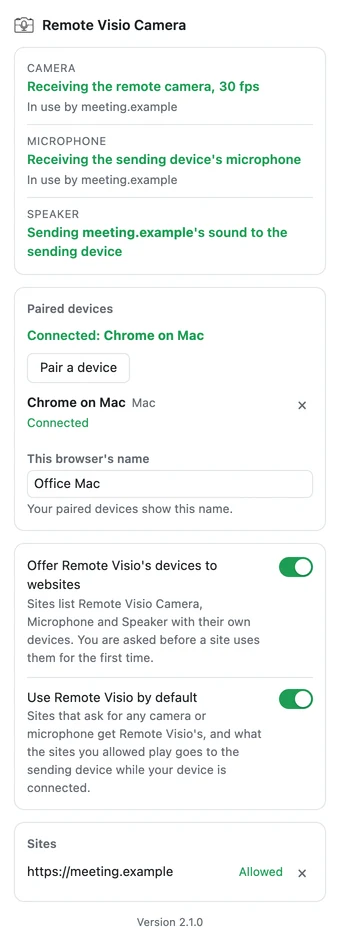
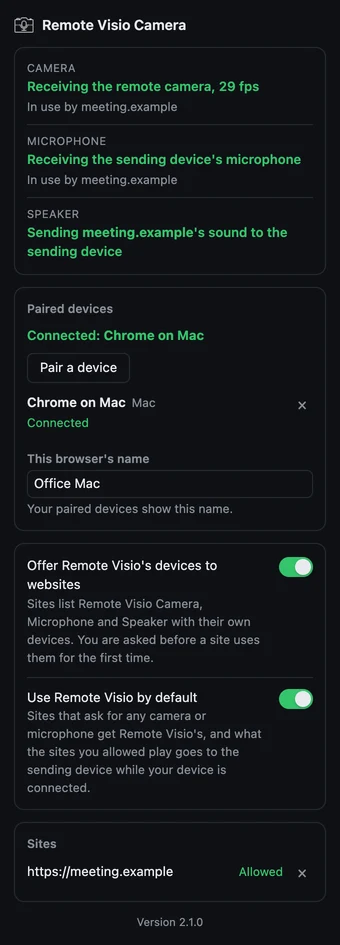
The button's Paired devices card lists each device, when it was last used, and Remove. A device not used for 60 days is removed by itself. One device sends at a time; another paired device that starts meanwhile is told the computer is busy. The name the devices show for this browser is set there too.


Every permission, explained
No access to your tabs, history, cookies or downloads. No remote code. No analytics. Here is what it does ask for, and why.
-
Storage
storageSaves your two settings and the list of sites you allowed or blocked, on this computer only. Nothing is synced.
-
Offscreen documents
offscreenKeeps the connection your paired device uses to start a call, and the WebRTC connections that carry its microphone, camera and speaker, in a hidden page of the extension, because a service worker cannot hold them. It has no user interface and plays nothing aloud.
-
Alarms
alarmsChecks once a minute that the hidden page above is running, so your paired device can reconnect after the browser restarts.
-
Unlimited storage
unlimitedStorageKeeps the pairing keys of your own devices from being deleted when the browser needs space. The extension stores a few kilobytes.
-
Runs on https:// pages
https://*/*Meetings run on many sites (Google Meet, Teams, Zoom, Jitsi, Whereby…), so its script must be present on any https page to add the three devices to that page's device list. It reads no page content, and no site gets the devices before you allow it.
-
Runs on localhost
http://localhost/*,http://127.0.0.1/*For meeting servers running on the computer itself, such as a developer's local test server.
The one server it talks to
relay.remotevisio.com, Remote Visio's relay on Cloudflare, for the pairing and the connection setup, which are encrypted end to end between your device and the extension. The relay never carries audio or video.
What it does on a page
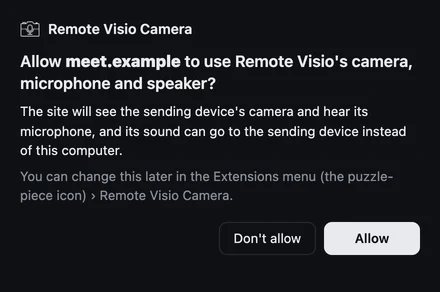
It adds three entries to the page's device list and answers the page's request when you pick one. For the speaker, it takes only the sound a page you allowed plays into Remote Visio Speaker. It does not read page text, forms, cookies or history, and sends your audio and video only to your paired device.
What it stores
On this computer only: your two switches, the sites you allowed or blocked, and, in the extension's own database, the pairing keys and names of your paired devices and this browser's name. Removing the extension deletes them. Details in the privacy policy.
Two switches, your sites, your devices
Offer Remote Visio's devices to websites
On by default. Off, no page gets them, and pages using them are disconnected at once.
Use Remote Visio by default
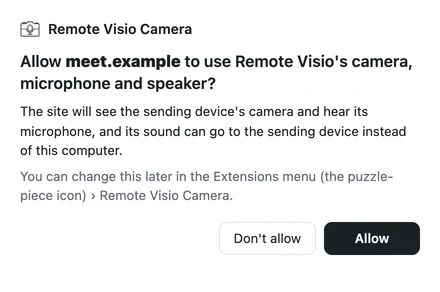
On by default. A site you allowed that asks for any microphone or camera gets Remote Visio's, and what it plays goes to your sending device while that device listens.
Sites
Every site you answered, allowed or blocked. Remove one and it asks again; a site in use is disconnected at once.
Paired devices
Every device you paired, with Remove. A removed device can no longer connect, and its sender page says so.
To remove the extension, use Remove on its card in the browser's extensions page (Remove from Chrome). That deletes its settings and pairings on this computer.
Something missing?
If Remote Visio's devices do not appear in a meeting, reload the page, check that the meeting runs in the browser profile with the extension, and that the extension's button shows your device as connected. The support page goes through the rest, and the camera guide covers managed browsers.
Free · open source · no account
Talk in your next meeting on the remote computer.
Add the extension to the browser on the remote computer, pair the device in front of you once, and press Start.