How Remote Visio works
Your remote desktop tool carries the remote computer's screen to you, and your keyboard and mouse to it. Remote Visio adds a second channel next to it: your microphone and camera to that computer, and the meeting's sound back to you.
Two channels


The path of your voice
- 01
The device in front of you
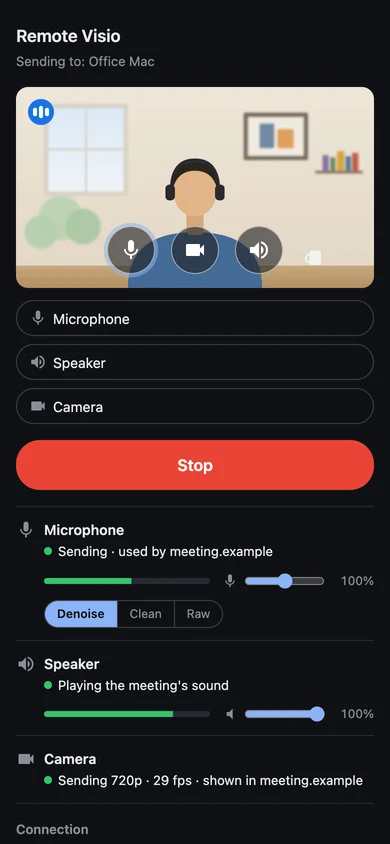
Any browser opens remotevisio.com/send. The page captures your microphone (Opus, 48 kHz) and camera (H.264), and runs echo cancellation and noise suppression once, here.
- 02
Remote Visio's relay
A small service on Cloudflare passes the encrypted connection setup between your device and the extension. It never carries audio or video, and cannot read what it passes.
- 03
Encrypted WebRTC
Audio and video go peer-to-peer, directly between your two devices, over the path the public STUN servers help them find. No Remote Visio server in between.
- 04
The browser extension
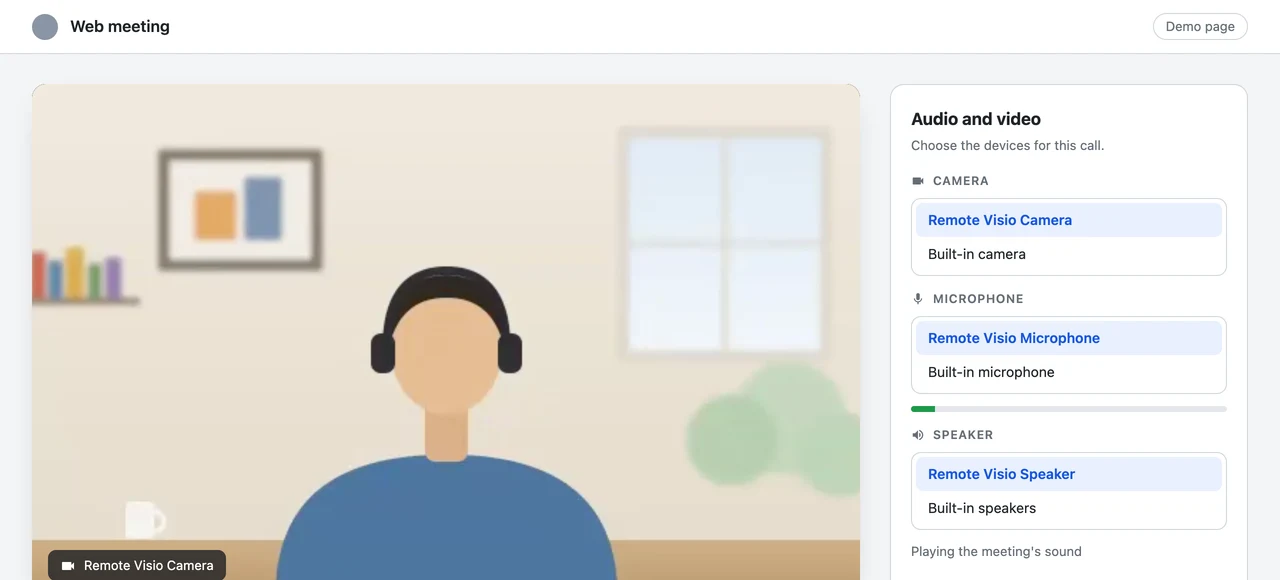
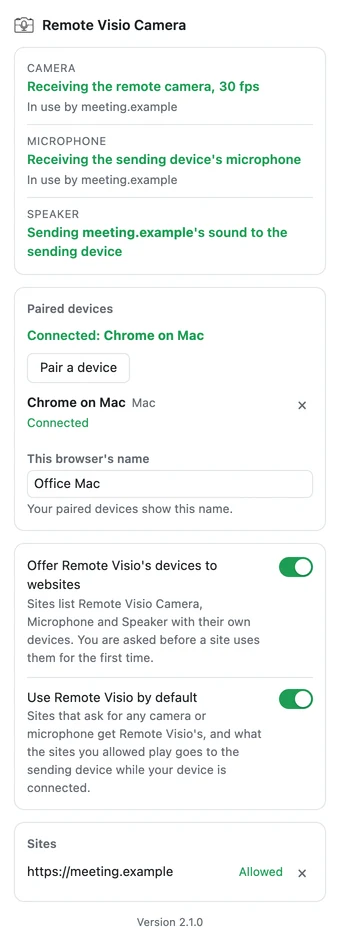
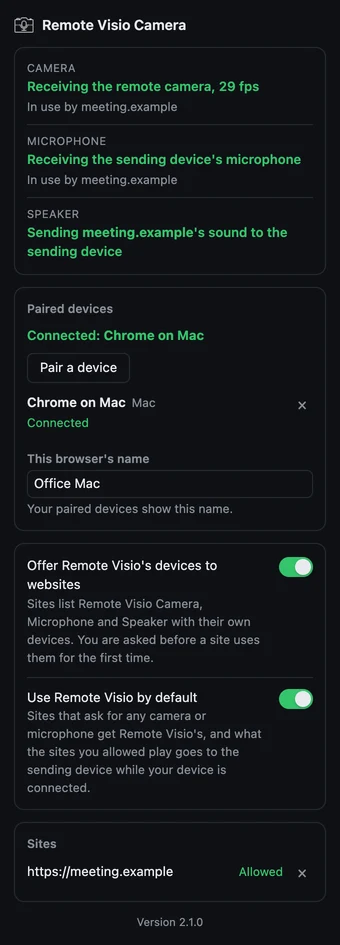
On the remote computer, it receives your microphone and camera, offers Remote Visio Microphone, Speaker and Camera to the sites you allowed, and sends back what they play into the speaker.
The way back: the meeting's sound
The meeting page plays into Remote Visio Speaker, which is silent on the remote computer. The extension sends that sound to your device over the same encrypted connection. You hear the meeting in your browser, and can turn audio off in the remote desktop tool.
Pairing, once per device
The extension's button shows a link and a QR code; the sender page shows a number; you type it into the approval window on the computer and click Allow. From then on, only your paired devices can connect, and the extension's button lists them, with Remove next to each.
Setup, once
Three steps on the first day. After that, it is one bookmarked page on your device.
-
On the remote computer: add the extension
Through your remote desktop, open the extension's Chrome Web Store page in Chrome, Edge, Brave, Arc or another Chromium browser and click Add to Chrome (Get in Edge). Pin it, so its button stays in the toolbar. Nothing is installed outside the browser, and no administrator is needed.


-
Pair the device in front of you
Click the extension's button, then Pair a device: it shows a QR code and a link, good for 10 minutes. Scan the code with your phone, or open the link on your laptop. The sender page at remotevisio.com/send asks you to confirm and shows a 6-digit number: type it into the approval window that opened on the computer and click Allow. The page then names the computer and offers Send to this computer.


-
Press Start, and pick Remote Visio in the meeting
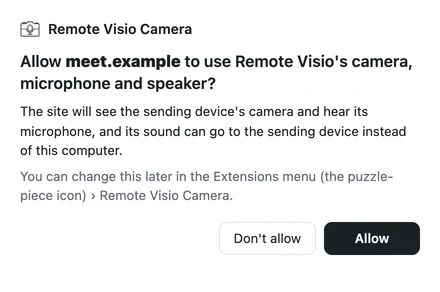
Press Start on your device and allow its microphone and camera. In the meeting's settings on the remote computer, choose Remote Visio Microphone, Speaker and Camera. The extension asks once whether the site may use them, and remembers. With Use Remote Visio by default on, sites that ask for any microphone get Remote Visio's.


What you see
Real screens, live values.
The connection: through the relay, then between your devices
Both sides reach relay.remotevisio.com to find each other and exchange the encrypted connection setup. The audio and video then take the direct path between your device and the remote computer.


Setup through the relay
From anywhere with internet: home, office, another country. The relay sees that your browser is online and passes messages it cannot read.
Media straight between your devices
On the same network or across the internet, as a video call does. Public STUN servers (Google, Cloudflare, Xiaomi) help each end find its public address.
Where it does not connect yet
Two devices that cannot reach each other directly, as behind some corporate firewalls: Remote Visio has no TURN relay yet, so the page stays on "Connecting".
Security, plainly
Encrypted, end to end
Pairing gives your device and the extension keys of their own, and everything they exchange through the relay is encrypted with them: the relay sees ciphertext, IP addresses and timings, nothing else. The audio and video are encrypted by WebRTC (DTLS-SRTP) and never pass through a server of ours.
Each site asks first
A web page gets Remote Visio's devices only after you allow its site, once. The extension's button lists the sites, and taking one back disconnects it at once.
Pairing, once per device
A link or QR code that works for 10 minutes, a number typed on the computer, Allow. Only paired devices can connect; one sends at a time. A device not used for 60 days is removed, and you can remove any of them from the extension's button.
Good to know
A paired device hears what meetings play into Remote Visio Speaker, so pair only devices you trust. The sender page's code comes from our servers: whoever controls them could change it. We publish the hashes of the files we serve, so anyone can check them against the source code.
What it does not do
- No screen or input: that stays your remote desktop tool's job.
- No microphone, speaker or camera for native apps (Zoom, Teams, FaceTime apps, dictation).
- No Safari or Firefox on the remote computer: the extension needs a Chromium browser.
- Not for monitoring yourself while recording music: latency is about a phone call's.
- No TURN relay yet: two devices with no direct path between them do not connect.
- No use without internet on both sides, and on Windows and Linux a browser window must stay open on the remote computer.
Free · open source · no account
Talk in your next meeting on the remote computer.
Add the extension to the browser on the remote computer, pair the device in front of you once, and press Start.