Your phone can be the microphone, webcam and speaker of a Mac that is somewhere else, with no app to install on the phone. The Remote Visio extension in the Mac’s browser serves the meeting; you open a web page in the phone’s browser, pair it with the Mac once by scanning a QR code, press Start, and web meetings on the Mac get your phone’s microphone and camera, while the meeting’s sound plays on your phone.
When this is the right tool
- You control a Mac from far away (another room, the office, another city) through Parsec, AnyDesk, Screen Sharing or another remote desktop tool, and you take meetings on it.
- The device you sit at has no good microphone or camera, or your laptop’s are in use, and your phone’s are better.
If the phone and the Mac are in the same room, Apple’s Continuity Camera and Continuity Microphone already do this for free, and you do not need Remote Visio.
What you need
- On the Mac: the Remote Visio browser extension in Chrome, Edge, Brave or Arc. Meetings run in that browser.
- On the phone: a browser. Safari on iPhone and Chrome on Android both work.
- Internet on both sides. The audio and video then travel directly between the phone and the Mac.
Step by step
- Add the extension on the Mac. Through your remote desktop, open the extension’s Chrome Web Store page in the Mac’s browser, click Add to Chrome (Get in Edge) and pin it.
- Show the pairing code. Click the extension’s button, then Pair a device. A QR code appears; Show larger makes it easy to scan through your remote desktop window.
- Scan it with the phone. The phone’s camera app opens the link,
remotevisio.com/sendwith the pairing in it. Tap Pair: the page shows a 6-digit number. - Type the number on the Mac, in the approval window that opened there, and click Allow. The phone then names the Mac and offers Send to this computer. Bookmark the page, or add it to the home screen, for next time: the pairing is remembered.
- Press Start. The browser asks for the microphone, then the camera. Allow both (or only the microphone, if you do not want to send video).
- On the Mac, in Google Meet, Teams or Zoom on the web, choose Remote Visio Microphone, Remote Visio Speaker and Remote Visio Camera, and allow the site once.
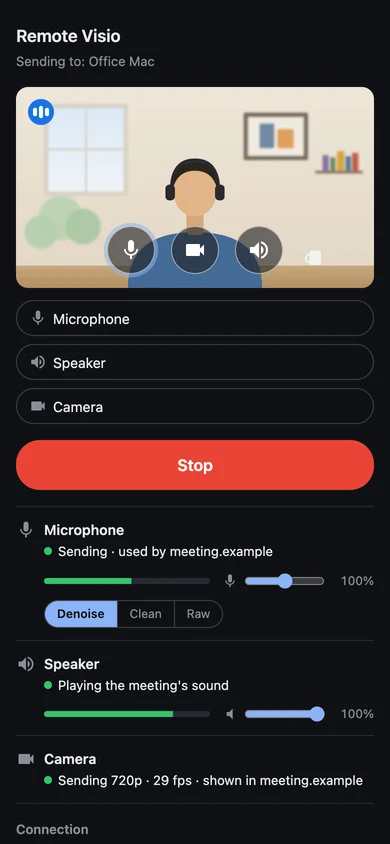
The sender page now shows your camera’s preview, a level meter that moves when you talk, and a green status for each device.


The sender page, briefly
- Three round buttons over the preview turn the microphone, the camera and the speaker on and off at any time, without reconnecting. Red means off.
- The pills under the preview choose which microphone, speaker and camera of the phone to use. The names appear after the first Start.
- Denoise, Clean and Raw choose how much sound processing your browser applies. Denoise is a good default for a phone.
- Statuses: green when the device gets through and a meeting on the Mac uses it, amber while it is on its way or no meeting uses it yet, red with what to fix.
- Computers lists the Macs you paired, whether each is online, and which one the page sends to.
Every choice is remembered by that browser for next time.
iPhone notes
- Volume. On iPhone and iPad a web page cannot set the volume, so there is no speaker slider: use the phone’s volume buttons.
- “Paused by the browser”. After a phone call, Siri, or some time in the background, iOS suspends the page’s sound and nothing is sent. Tap the page or press a key to resume.
- Keep the page in front. A page in the background may be paused by the system. Keep the sender page open while you talk.
- Open it now and then. Safari may delete a page’s stored data, the pairing included, after a week without opening it. Pairing again takes a minute.
Camera notes
- Remote Visio’s camera travels as H.264. If the camera’s status says this browser cannot send H.264, open the sender page in another browser on that device, such as Chrome.
- The camera reaches web meetings on the Mac, as Remote Visio Camera. Native video apps do not see it. See A virtual camera for Google Meet.
- Turning the camera off with its round button stops it (its light goes off); the microphone and speaker carry on.
Use headphones or the speaker?
Either. While the sender page’s speaker is on, your browser’s echo cancellation is on too, so the meeting’s sound from the phone’s speaker is not sent back into the meeting. Turn off sound in your remote desktop tool, or you will hear the meeting twice. Details in Fix echo and double audio.
Limits
- The microphone and speaker are for web meetings in a Chromium browser on the Mac. The Zoom, Teams and FaceTime apps cannot use them: join from the browser.
- Only paired devices can connect. Remove a phone you no longer use from the extension’s button; the Mac also forgets a device after 60 days without use.
Add the extension on the Mac and give it a try with the phone in your pocket.