Parsec gives you a Mac host’s screen, keyboard and mouse, but it has no microphone passthrough to a Mac host: your microphone does not reach the Mac. To speak in a meeting that runs on the Mac, keep Parsec for the picture and run Remote Visio next to it: Remote Visio carries your microphone, your camera and the meeting’s sound on a separate connection, and Parsec does not need to know.
What Parsec does, and what it leaves out
Parsec is built for responsive remote control, and it does that part well on a Mac host. What it does not do, when the host is a Mac, is make your microphone available to the Mac’s apps. That is true of the other common remote desktop tools as well: TeamViewer, AnyDesk, RustDesk, Jump Desktop and macOS Screen Sharing. (This is based on how each tool behaves with a Mac host, as tested by Remote Visio’s author. Tools change; if yours has added it, you may not need anything else.)
The result is familiar: you join Google Meet or Teams on the Mac through Parsec, you see the call, and nobody can hear you.
How Remote Visio fits next to Parsec
Remote Visio is not a remote desktop tool. It is a browser extension in a Chromium browser on the Mac, and a web page on the device you sit at:
- Parsec keeps carrying the screen, keyboard and mouse.
- Remote Visio carries your microphone and camera to the Mac, and the meeting’s sound back to you, over an encrypted peer-to-peer WebRTC connection. Its relay only helps the two sides find each other.
On the Mac, the meeting picks Remote Visio Microphone, Remote Visio Speaker and Remote Visio Camera like any other device.


Setup, step by step
- Add the extension on the Mac. Through your remote desktop, open the extension’s Chrome Web Store page in Chrome, Edge, Brave or Arc on the Mac and click Add to Chrome (Get in Edge), then pin it so its button stays in the toolbar. Nothing is installed outside the browser, and no administrator is needed.
- Pair the device in front of you. Click the extension’s button, then Pair a device: it shows a QR code and a link, good for 10 minutes. Scan the code with your phone, or open the link on your laptop. The sender page at
remotevisio.com/sendasks you to confirm and shows a 6-digit number: type it into the approval window that opened on the Mac and click Allow. The page then names the Mac and offers Send to this computer. - Press Start and pick the devices. Press Start on your device and allow its microphone, and the camera if you want to send video. In the meeting’s settings on the Mac, choose Remote Visio Microphone, Remote Visio Speaker and Remote Visio Camera, then click Allow when the extension asks whether the site may use them. It asks once per site.
- Turn off audio in your remote desktop tool. Remote Visio now carries the meeting’s sound back to you. If the remote tool still forwards sound, you hear the meeting twice.
The whole first step happens inside your Parsec session; the pairing link can be opened on your own computer, and the QR code scanned with a phone straight off the Parsec window (Show larger in the extension’s button makes it easier).
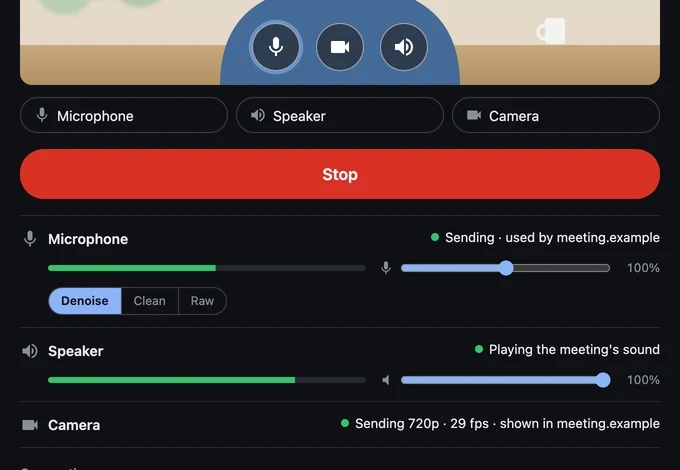
Turn off the remote tool’s sound
Remote Visio sends what the meeting plays into Remote Visio Speaker back to your browser, on its own low-latency connection. If your remote desktop tool also plays the Mac’s sound to you, you will hear the meeting twice, with two different delays. Turn sound off in the remote tool’s settings and leave the meeting’s sound to Remote Visio. The echo guide covers the other symptoms.
Keep the sender page’s speaker on while you talk: while it is on, your browser’s echo cancellation is on too, so the meeting coming out of your speakers is not sent back into it.
What to expect
- Latency is roughly a phone call’s: the network’s delay plus a small buffer. Fine for meetings.
- Two connections run side by side, Parsec’s and Remote Visio’s. They do not interfere: Remote Visio does not touch the screen, and Parsec does not touch Remote Visio’s audio.
- Meetings in the browser. The microphone and speaker exist in web pages of a Chromium browser on the Mac (Chrome, Edge, Brave, Arc, Vivaldi, Opera). The Zoom and Teams apps cannot see them: join those meetings from the browser. See Join Zoom and Teams from the browser.
- The browser stays open. The extension runs only while the Mac’s browser does; a Mac that is logged in with its browser open is all it needs.
Troubleshooting in one minute
- The meeting hears nothing. On the sender page, the microphone’s status must be green and its meter must move when you talk. In the meeting’s settings, Remote Visio Microphone must be selected.
- Remote Visio’s devices are missing from the meeting. Reload the meeting page after installing the extension, and check that the meeting runs in the Chromium browser profile where the extension is installed.
- The sender page is waiting for the computer. The browser with the extension is not running on the Mac, or your device is no longer in its Paired devices: pair again from the extension’s button.
More on the support page. Ready? Add the extension on the Mac.